Go at your own pace
No timers, no streak guilt. Stop mid-question and pick it up tomorrow.

A guided-learning preview
Meet Ponder, a learning guide who asks a helpful question before giving the answer, offers one hint at a time, and leaves the thinking to the learner. Families follow along. Teachers see the bigger picture.
The questions Ponder is being built for. Written the way learners actually ask them.
01 On every screen
Drag the ring, use the arrows, or focus it and press ← →. Every screen is built in HTML as a preview, not a screenshot of a shipped app.
What fraction of the bar is shaded?
Mia’s week
At snack time, ask Mia to share something into quarters and name one piece.
Fractions · this week
26 learnersThings I figured out
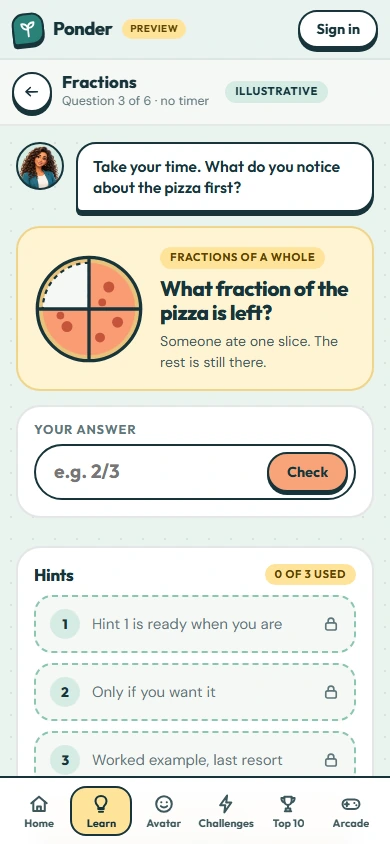
Shade 3/4 of the pizza.
The learner tries first.
02 A look inside Ponder
A learner types “I don’t understand 3/4.” Scroll to watch what Ponder does next, and what the family and the teacher see afterwards.
Mia is stuck on homework. She opens Ponder and says so, in her own words. There’s no menu of topics to navigate first and no pressure to phrase it perfectly.
Instead of explaining fractions from the top, Ponder asks one helpful question: what are we taking three-quarters of? Most fraction confusion starts there.
Why: a question first tells Ponder where the thinking actually broke down.
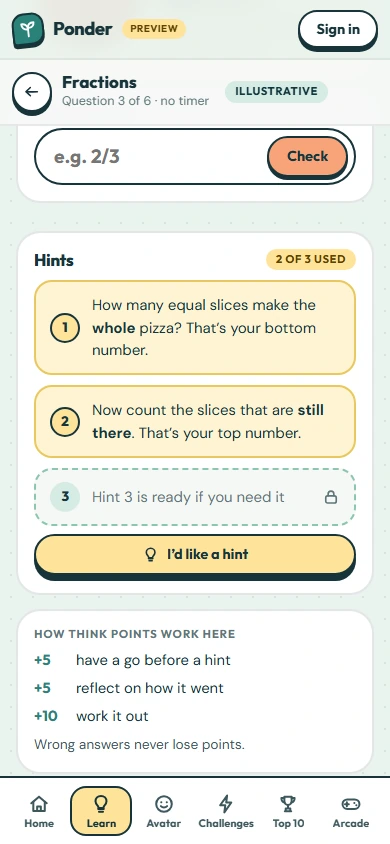
Mia asks for help. She gets the first rung of a three-step hint ladder, nothing more. The next rung stays locked until she chooses to ask again.
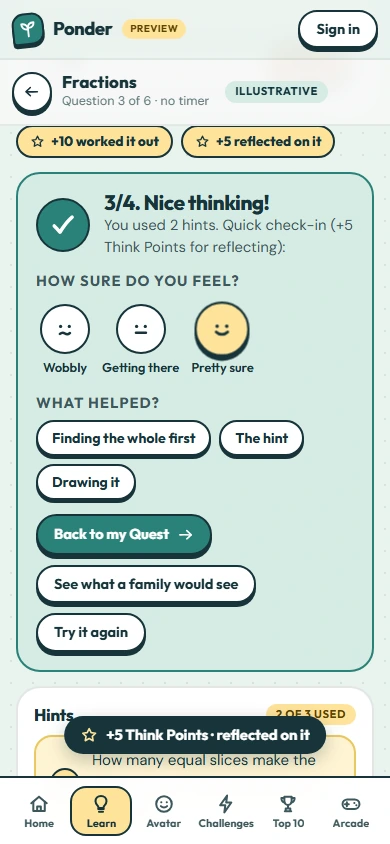
Mia shades three of the four slices. Ponder doesn’t just say “correct”. It asks how she decided, so she says the idea in her own words.
What helped, and how sure does she feel? Her answers go in her own journal. It’s her record of what she figured out, not a grade.
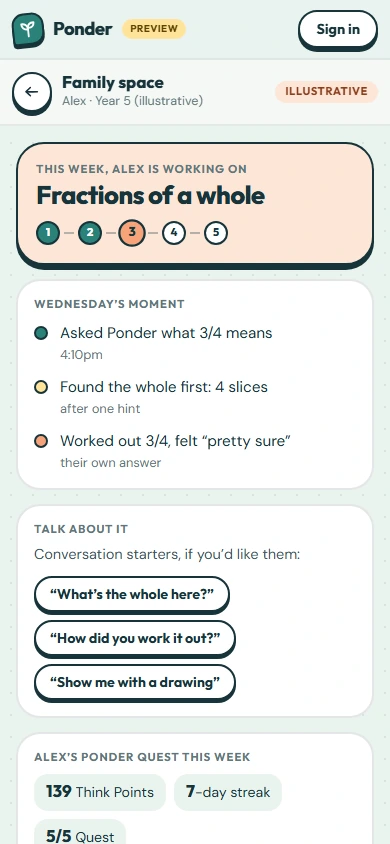
Later, her dad sees a short, plain summary: what she worked on, that she needed one hint, and one easy thing to try together at home.
Why: families want to help, not decode a dashboard.
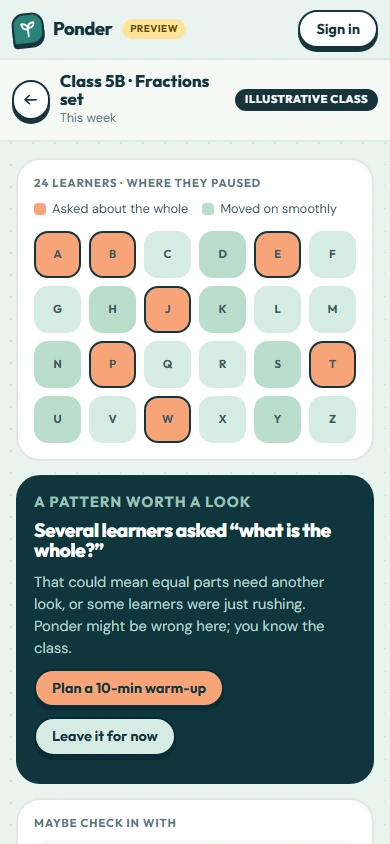
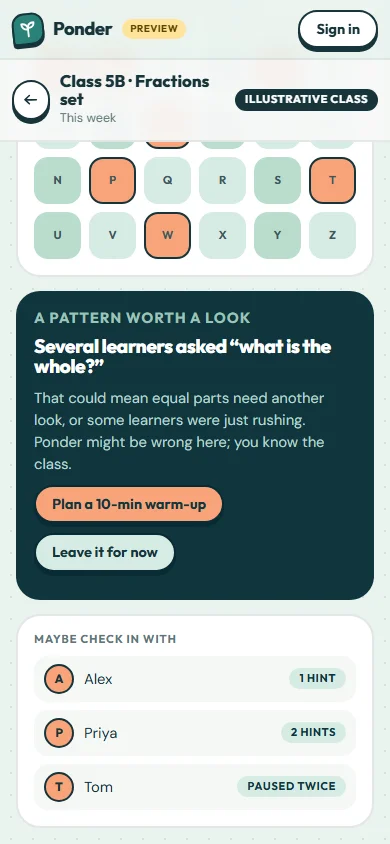
Across the class, several learners got stuck on the same idea. Ponder surfaces the pattern. The teacher decides whether it’s worth a warm-up, and whether Ponder is even right.
03 Three spaces
Real screens from the Ponder app. Pick a space to see what you can do there. Names on these screens are examples.
For the person doing the thinking
For parents and carers who want to help without taking over
For educators who want a clearer class picture
No timers, no streak guilt. Stop mid-question and pick it up tomorrow.
“What helped?” and “how sure do you feel?” come first. Points reward effort, never marks, and there’s no public leaderboard.
Shaped with families and educators in mind, with Australian year levels and spelling.
04 Schools and families, connected
A school sets up its classes. A teacher invites a parent with a one-time link. The parent links their child’s family profile. From then on, home and school see the same homework and progress, and nothing more.
A school admin registers the school and adds year levels, classes, teachers and students. Ponder verifies the school before any parent invitations can go out.
A teacher sees the students in the classes they’re assigned to. The database enforces it with row-level security, not just the screen.
A family space shows the children in that family, and school details only for a child who has been linked. The school sees the child’s Ponder name, year level and avatar.
One link, for one email, used once, expiring after 21 days. Decline it, or simply ignore it, and nothing is shared.
Coming soon Invitation emails sent by Ponder. Teachers can also copy the link or a ready-made email and send it themselves.
School and Family spaces with parent linking work in the Ponder app today. Names on this page are examples.
05 One moment, three views
Her question, the one hint she used, the moment it clicked, and her own words about why.
A short summary of what she worked on, how much help she needed, and one easy next step for home.
Not Mia in isolation, but a pattern across the class that might be worth ten minutes on Thursday.
06 Help that shows, not tells
Tap “?” on any screen of the app and Ponder walks you through it, one highlighted step at a time. Walkthroughs that create things, like adding a child or setting up a school, can run in practice mode with sample data, so nothing real changes.
An example walkthrough: adding a child in practice mode.
16 walkthroughs, each with step-by-step instructions in the Help centre and a “Show me in the app” button.
07 AI with a purpose
Ask Ponder runs on Claude. The scenarios below are scripted examples of how Ponder holds back on purpose; ask your own question underneath to try the real thing. The principles on the right light up as they come into play.
A question back comes first, so the learner does the thinking and Ponder learns where they’re stuck.
Help arrives in small rungs, only when asked. Never the whole solution in one go.
Parents and teachers make the decisions. Ponder suggests; it never overrides.
Ponder says when it isn’t sure. Human judgement matters, and it’s built into the flow.
08 Gifted pathway
The next-year challenge is a hard test for the learner’s own year. Pass it and Ponder opens up next-year learning, so strong learners keep being stretched.
Grown-ups stay in control. A parent starts it from the Family space, or a teacher from the class roster. Once a family and school are linked, the family sees school challenge results too.
09 Plans that fit the learner
Here is how learning plans work in Ponder, and how people stay in charge of them.
From English and maths to HASS, the arts and languages, Pre-primary to Year 12 and beyond. Choose “learn something new” or “improve”, and it shapes what Ponder suggests.
Parents and teachers record results in the school’s own scale (A–E, 1–7 or percentages), with the teacher’s comment kept word for word. When a family is linked, school results appear on the child’s profile.
Strengths, two to four focus areas and a four-week plan, written three ways: for the learner, the parent and the teacher. A teacher approves the plan before a family sees it.
Upload a report card and Claude reads it into results. You check every field beside the page before anything is saved. It switches on only after passing a 95% accuracy test, and nothing is used to train models.
Your next four weeks
You’re great at: times tables up to 10.
Let’s work on: fractions of a whole.
Check-in: can you explain what the bottom number means?
How you can help at home
Strength: quick and confident with times tables.
Focus: fractions, especially what “the whole” is.
Try this week: fold paper into quarters at dinner and ask what one piece is called.
Based on: Term 2 maths result (B) and the teacher’s comment “needs to consolidate fractions”.
Next-lesson ideas
Focus: fractions of a whole (Number strand).
Grouping: a small group on equal parts before Thursday’s lesson.
Based on: Term 2 result and four hints used on “the whole”. Confidence: medium. Not known: whether question wording caused the errors.
Suggestions, not diagnoses. No labels about ability, no comparing a child with classmates by name, and every plan says what it’s based on. People can edit or dismiss anything.
10 Ponder Quest
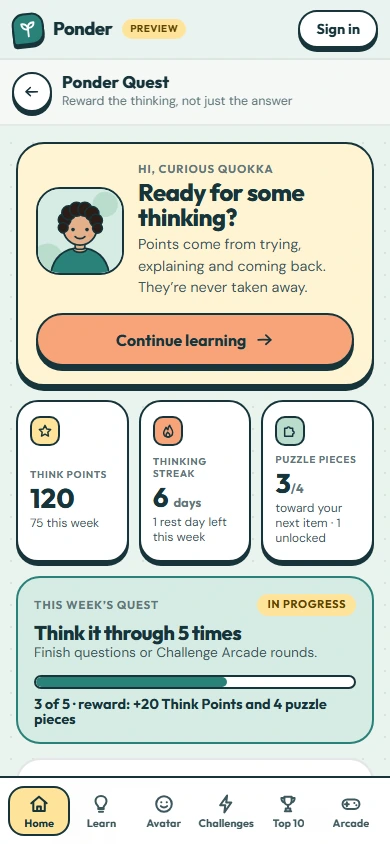
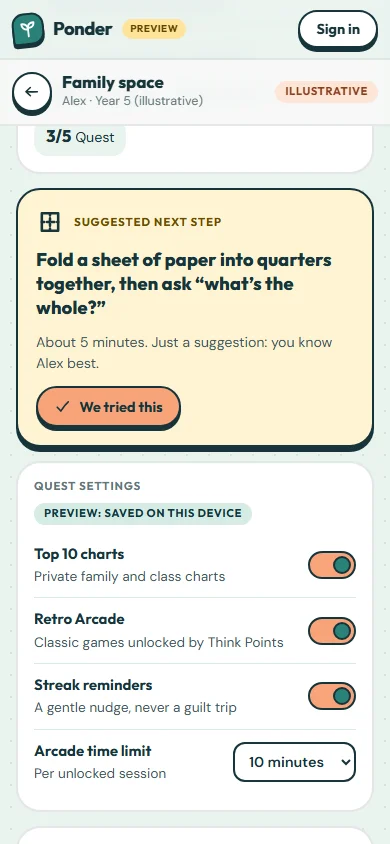
Every bit of real thinking earns Think Points and puzzle pieces. Pieces build your own avatar, points unlock family arcade classics like Snake, and friendly weekly charts celebrate effort, all under grown-up control.
In the app now Saved to each learner’s account when signed in.
1Think Points
Points are never taken away. A wrong answer followed by another try earns more than a lucky guess.
2Streaks
12-day thinking streak
Counts days with at least one finished question or game.
Two rest days a week keep a streak alive, so missing a day never wipes out progress. Milestones at 3, 7, 14 and 30 days award bonus puzzle pieces.
3Puzzle pieces
Finished questions and games, streak milestones and the weekly Quest award pieces. A full set unlocks an avatar item. It’s the face learners show on charts, so no real photos or names are needed.
4Challenge Arcade
Quick-fire rounds: five questions, no timer, and a wrong answer never loses points. Winning is finishing the weekly Quest or beating your own best, and it earns a celebration, Think Points and puzzle pieces.
5Prizes & the Retro Arcade
Classic games unlock only when a points goal is met. The first play of each game is a Play together moment: Ponder prompts a parent or carer to show their child how they played it “back in the day”. Arcade time is capped so learning stays the main event.
Also in the arcade: BlocksBreakoutPong
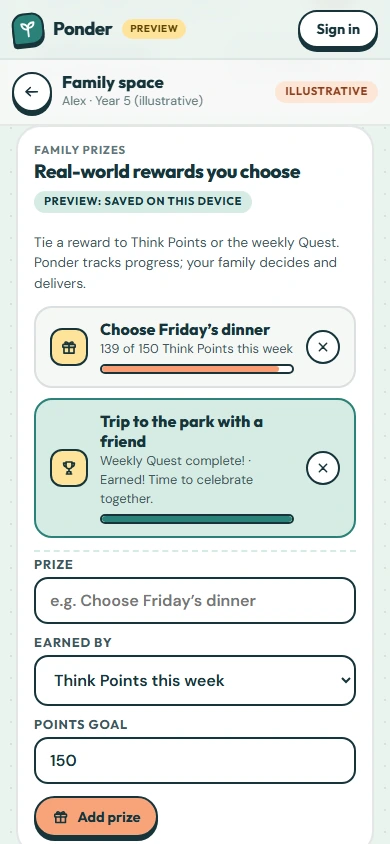
Parents set their own real-world family prizes, tied to points or the weekly Quest. Ponder tracks progress; the family decides and delivers.
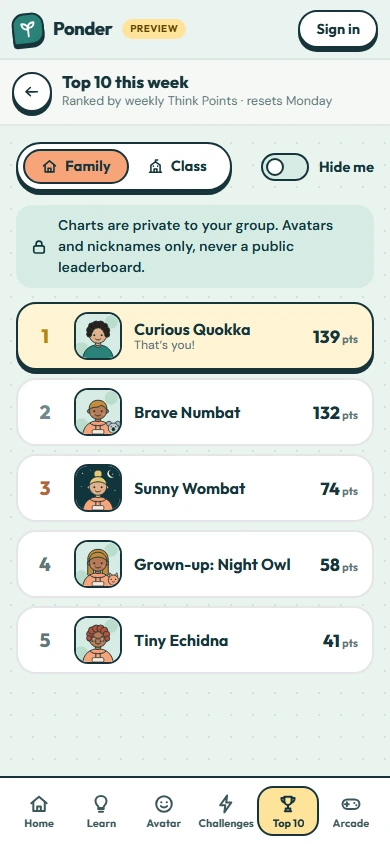
Top 10 charts
Private groups only: a family, or a class at school. Never a public leaderboard. Ranked by weekly Think Points, so effort counts, with avatars and nicknames only. Learners can hide themselves.
Grown-ups stay in control
Parents choose which features are on (charts, arcade, streak reminders), set arcade time limits and create family prizes. Learners can hide themselves from any chart.
In the app now. Signed in, Ponder Quest saves to each learner’s account, with private weekly Top 10 charts for a family or a class. Signed out, the guided preview uses sample data on this device. Family prizes and Quest settings are saved on the device for now.
11 Plans and pricing
Individual, Family and School plans, in Australian dollars with GST included.
12 Trust & privacy
Ponder is in preview, heading to launch. Here is exactly where things stand.
Ponder runs in your browser today, with Google or email sign-in. Phone and desktop apps come later.
Names on this page are examples. Real accounts are private to each family and school, protected by row-level security in the database.
A parent links a child to a school only by accepting the school’s invitation, and grown-ups choose which Quest features are on.
Anything not switched on yet, like report-card reading and paid plans, is labelled that way, here and in the app.
Open the interactive preview, meet Ponder, choose a space and try a question with the hint ladder.