Add a child and set up their avatar
Add a child to your family space with a first name, year level and an avatar.
Practice first if you like. In the app, this walkthrough can run in practice mode with a sample family, so nothing is saved to a real account. If you’re not signed in, practice mode is the only mode.
Step by step
Where: your family space.
Name your family space
New to Ponder? First give your family space a name. (Skip this if you already have one.)
Create it
Tap “Create family space”. Then you can add your children.
Add a child
Tap “Add a child”. You only need a first name or nickname.
Their name
Type a first name or a nickname. Ponder never needs a full name.
Year level
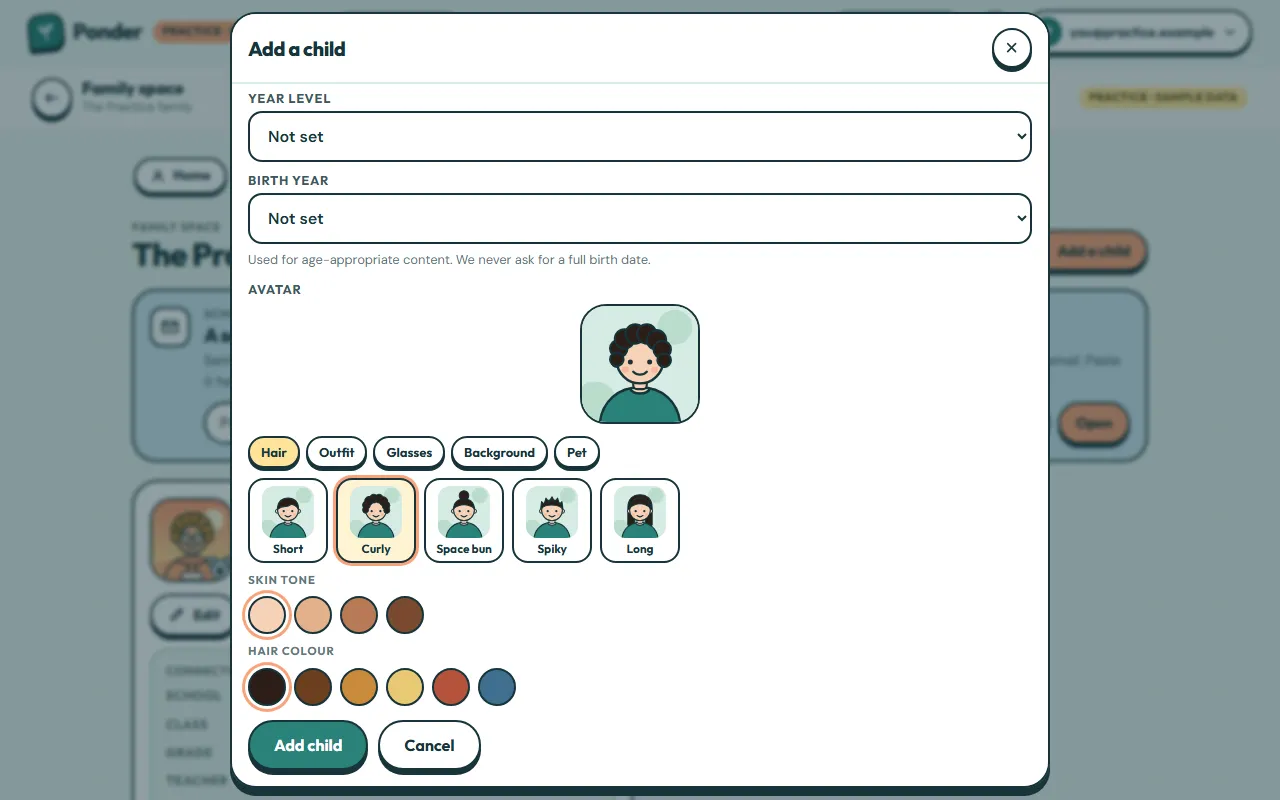
Choose their school year so Ponder can pitch questions at the right level. Birth year is optional: Ponder never asks for a full birth date.
Build their avatar
Pick hair, an outfit, glasses, a background and a pet. There are no photos: this avatar is what their groups see.
Save
Tap “Add child” to save them to your family space.
Their card
Each child gets a card with their avatar, year level and school connections. Tap Edit to change anything later.
 (open the full-size screenshot)