Set up your school
Create your school, add its grades, then add classes with rooms.
Practice first if you like. In the app, this walkthrough can run in practice mode with a sample school, so nothing is saved to a real account. If you’re not signed in, practice mode is the only mode.
Step by step
Where: School setup.
Set up your school
You’ll be the school’s owner. Ponder checks every school before it can invite parents, usually within a working day.
School name
Type your school’s name.
Type of school
Pick primary, secondary or tertiary. Ponder suggests the usual year levels for you. Add your suburb and state too.
Create school
Tap “Create school”.
Grades
Setup has five steps. Open Grades.
Add year levels
Add the usual grades in one tap. You can also type a custom one, like Kindy.
Classes
Now open Classes.
Class name
Type a class name.
Grade
Link the class to one of your grades.
Room
Add a room if it helps families and teachers find the class. It’s optional.
Add the class
Tap “Add class”.
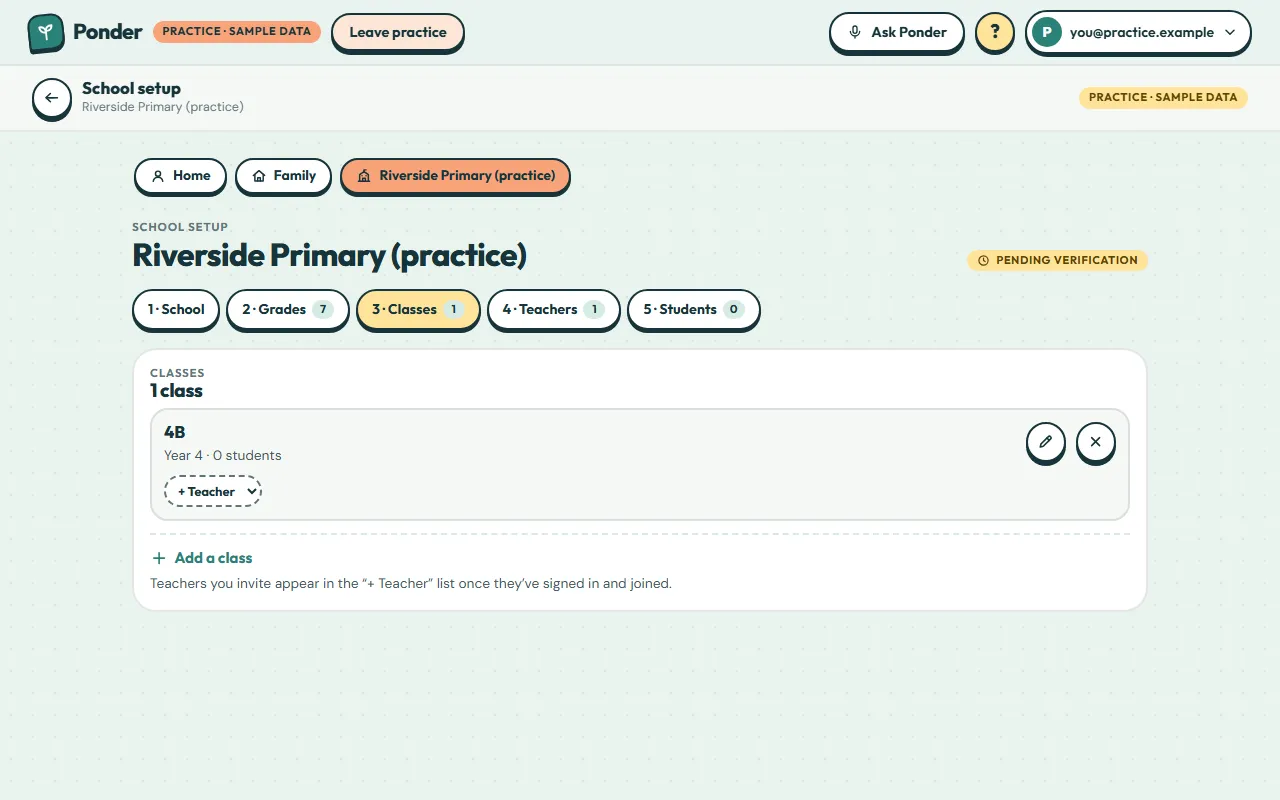
Your classes
Once teachers have joined, assign them with “+ Teacher”. Next: invite your teachers.
 (open the full-size screenshot)