Check verification status
See whether Ponder has verified your school and what you can do while you wait.
Practice first if you like. In the app, this walkthrough can run in practice mode with a sample school, so nothing is saved to a real account. If you’re not signed in, practice mode is the only mode.
Step by step
Where: School setup, then My account.
Verification status
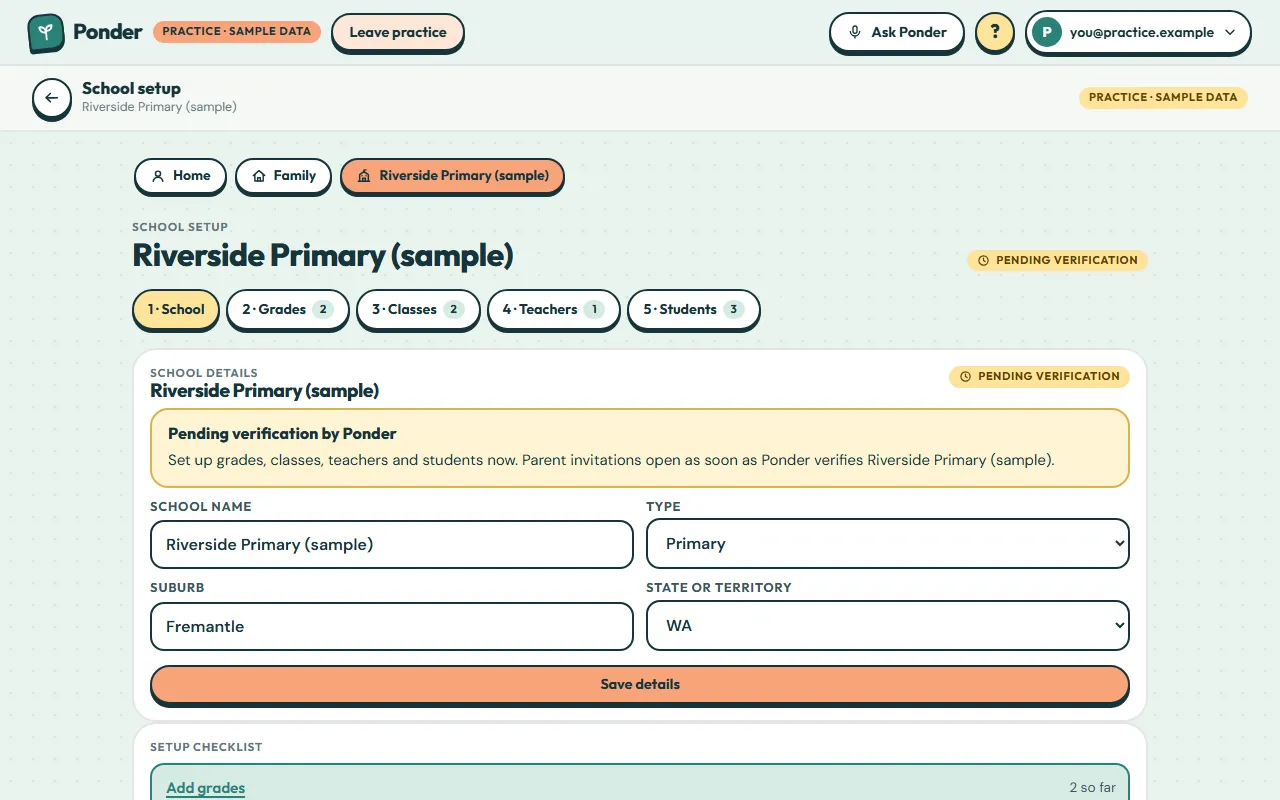
New schools start as “Pending verification”. Ponder checks that each school is real and that you work there, usually within a working day.
While you wait
Keep setting up grades, classes, teachers and students. Parent invitations open as soon as your school is verified.
Setup checklist
Track what’s done. Each item jumps straight to that step.
Check any time
Your school’s card on My account shows its status too: Pending verification or Verified.
 (open the full-size screenshot)