Accept a school invitation
Open a school’s invitation link and connect your child’s school to your family space.
Practice first if you like. In the app, this walkthrough can run in practice mode with a sample family, so nothing is saved to a real account. If you’re not signed in, practice mode is the only mode.
Step by step
Where: your family space, then the invitation screen.
A school invited you
When your child’s school uses Ponder, they send you an invitation link by email. Pending invitations show up here too.
Paste the link
Paste the invitation link from the school’s email.
Open it
Tap Open.
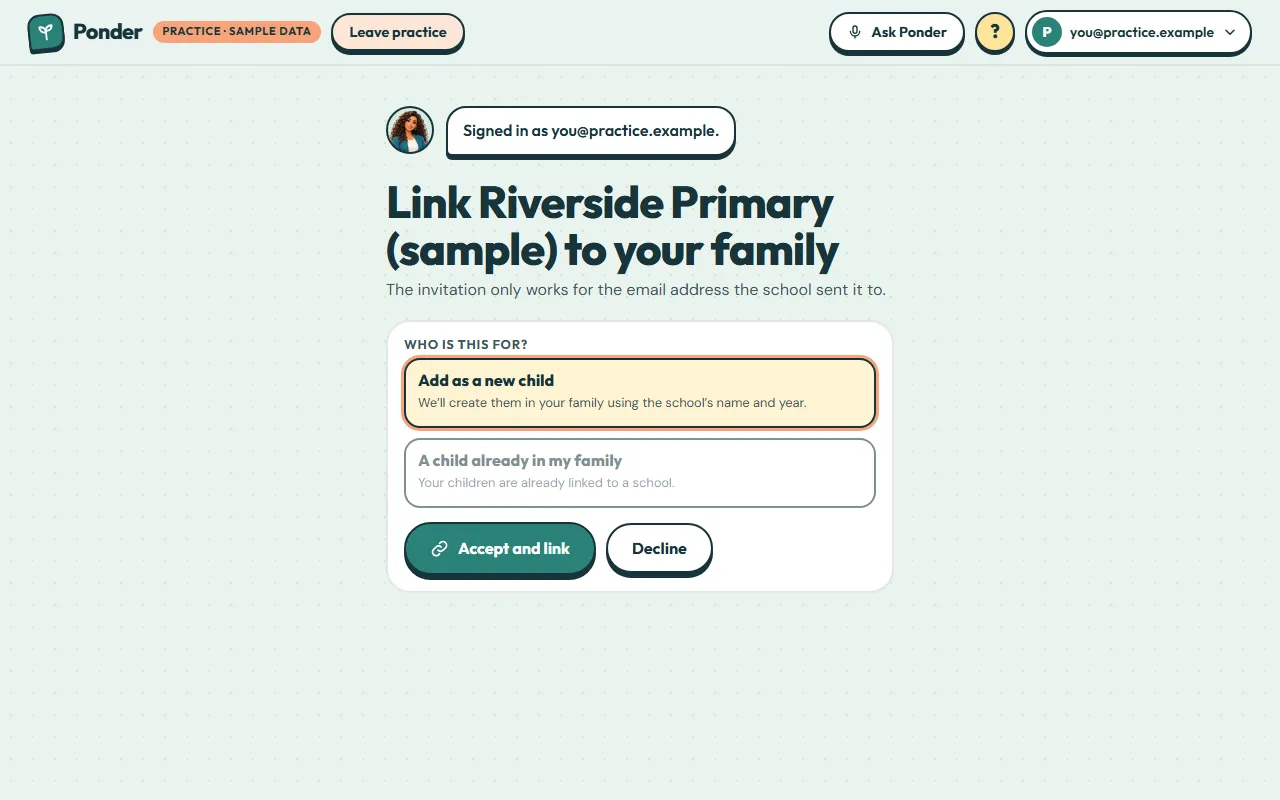
Who is this for?
Add them as a new child, or match them to a child already in your family. The invitation only works for the email address the school sent it to.
Accept or decline
“Accept and link” connects the school. “Decline” links nothing.
All linked
You’ll now see the school, class, teacher and homework in your family space.
The new connection
The school’s details now appear on your child’s card. You can unlink at any time.
 (open the full-size screenshot)