Start a gifted-pathway test
Start a next-year challenge for a child who finds their year too easy.
Practice first if you like. In the app, this walkthrough can run in practice mode with a sample family, so nothing is saved to a real account. If you’re not signed in, practice mode is the only mode.
Step by step
Where: your family space, then Next-year challenge.
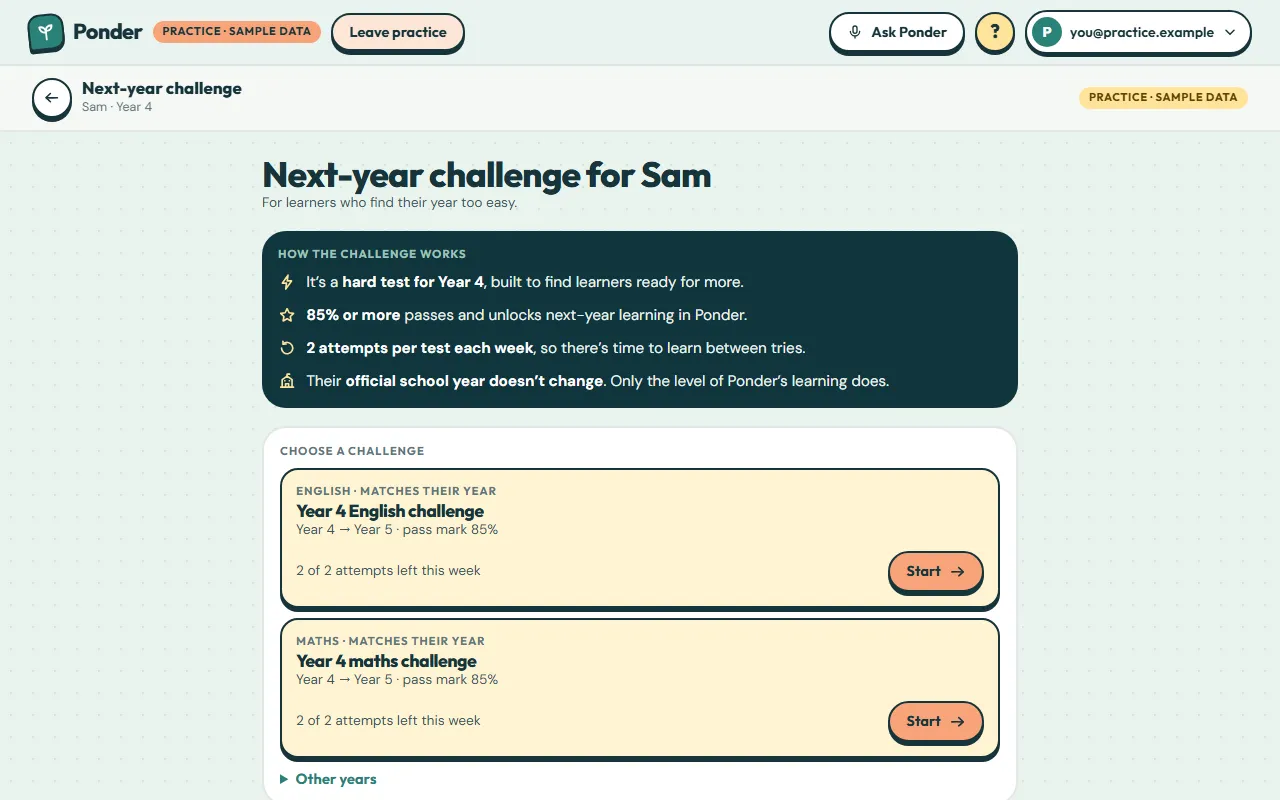
Next-year challenge
For a child who finds their year too easy, tap “Next-year challenge” on their card.
How it works
It’s a hard test for their current year. 85% or more passes and unlocks next-year learning in Ponder. There are 2 attempts per test each week, and their official school year never changes.
Start the challenge
Tap Start on the challenge that matches their year.
Answer each question
Choose an answer for each question. You can change answers until you submit.
Move around
Jump between questions with the numbers, or use Next. The timer stays hidden unless you switch it on.
Review and submit
On the last question, tap “Review and submit”.
In practice mode this runs against sample data.
Submit
Tap “Submit answers”. In practice mode no attempt is recorded. For real, submitting uses one of this week’s two attempts.
In practice mode this runs against sample data.
The result
The score shows straight away. Passing unlocks next-year learning in Ponder; their school year stays the same.
In practice mode this runs against sample data.
 (open the full-size screenshot)