Add students to your class
Add one student, or paste a whole list, to your class roster.
Practice first if you like. In the app, this walkthrough can run in practice mode with a sample school, so nothing is saved to a real account. If you’re not signed in, practice mode is the only mode.
Step by step
Where: My classes.
Your classes
Each class you teach has its own tab. Your school admin assigns classes to you.
The roster
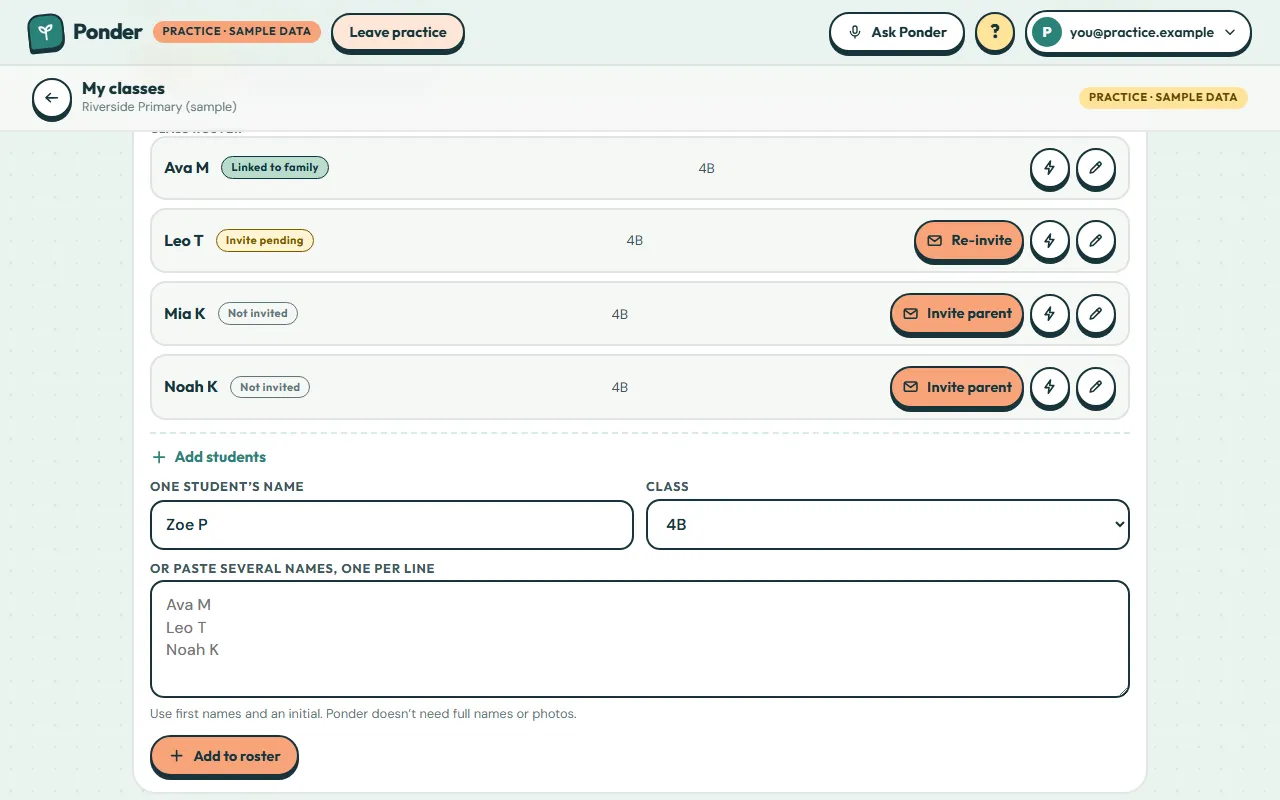
Each student shows whether their parent is linked, invited or not invited yet.
Add students
Open “Add students” to add one student, or paste a whole list.
One name at a time
Type a first name and an initial. Ponder doesn’t need full names or photos.
Or paste a list
To add a whole class at once, paste several names here, one per line.
Add to roster
Tap “Add to roster”.
They’re on the roster
New students appear straight away. Next, invite their parents so families can see homework.
 (open the full-size screenshot)